
Desktop App (Basic)
A guided tour of the free Rustalytics desktop app: pairing servers, the seven server-view panels, smart switches, vending watchers, and auto-updates.
Install the desktop app
Sign in with Steam from the Get Started page, then click Download.
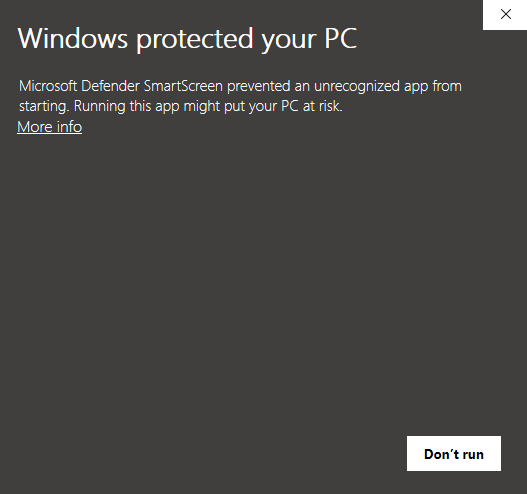
Getting an EV code-signing cert is a lengthy process, so SmartScreen flags us by default. Windows Defender can block it but we are safe and used by thousands of players.
After installation, sign in with the same Steam account you used on the website.
Home: paired server cards
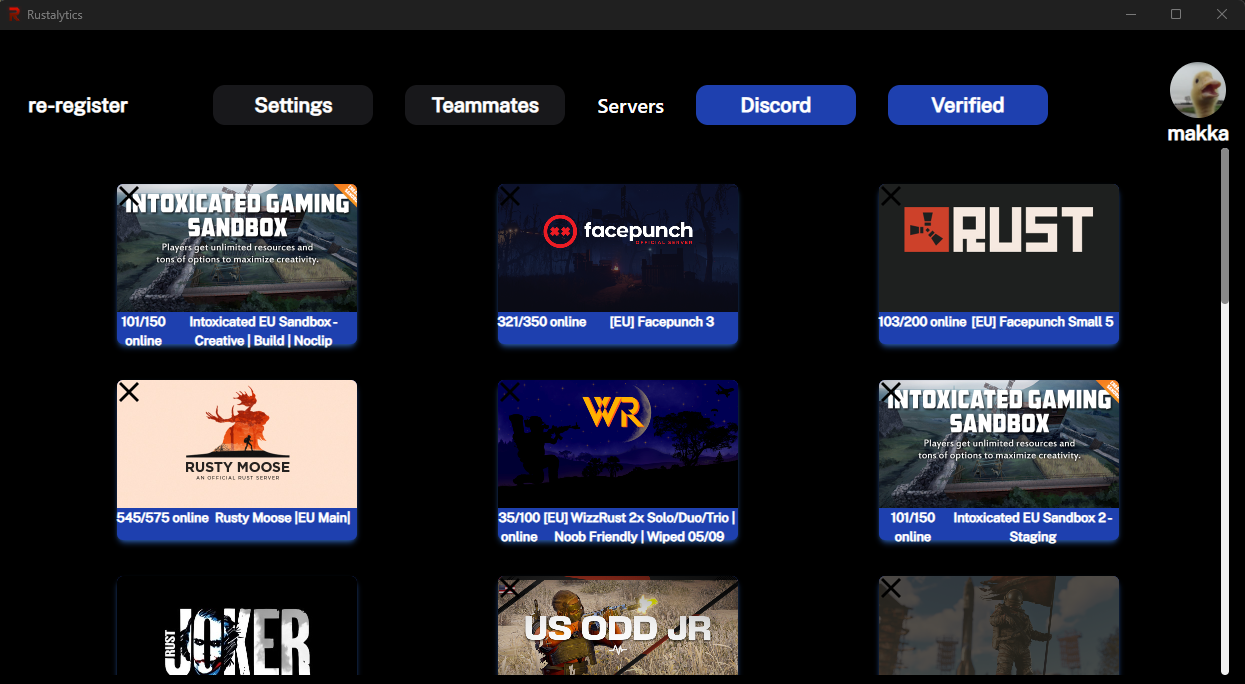
The home screen lists every server you've paired with Rust+. Click a card to open it. If you haven't paired anything yet, the screen explains how (or read Pair your server in Getting Started).
Server view: the seven panels
Click any server card and you land in the server view. The left rail toggles seven panels — only one is visible at a time, and clicking the active icon collapses it to give the map the full window.
1. Map
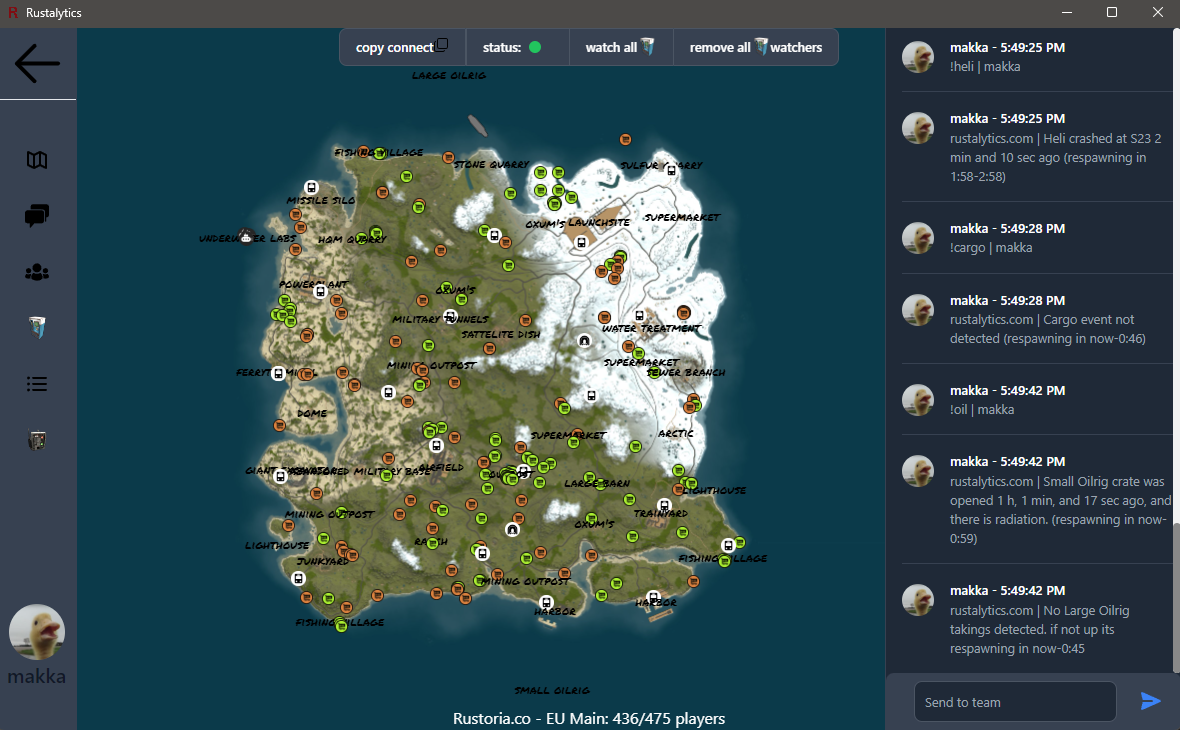
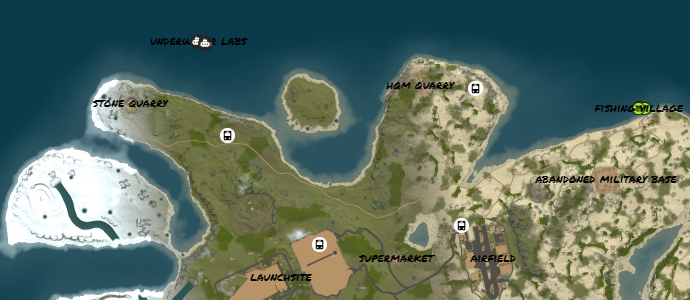
An interactive Leaflet view of the server map with monument labels, vending markers, and team markers. Click a marker to focus it. Click a teammate marker for their location and grid. Drag-click to move the map. Scroll to zoom.
2. Chat
Read team chat outside the game and send messages directly from the desktop app. Replies arrive in-game team chat as if you typed them. Use this to drive chat commands from your desk while the rest of your squad sees the result on their screens.
Click the trash icon at the top to clear local chat history.
3. Team
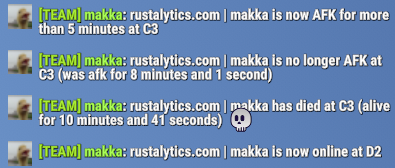
Your team roster with live status — alive vs dead, online vs offline, AFK vs active. Rustalytics tracks per-player stats locally:
- Alive time — how long since their last respawn.
- AFK time — how long they've been stationary right now.
- AFK ratio — total AFK time vs total alive time, as a percentage.
Click Show on Map to focus a teammate's marker. If you're the leader, Promote remotely transfers leader status — same as the !promote command.
4. Vending machines
Search every vending machine on the map by item name. Type "thompson" and the panel filters to every shop currently selling Thompsons, with their grid coordinates.
Add Watcher on any vending machine and Rustalytics notifies you when its stock changes. Use the topbar Watch all / Remove all watchers shortcuts to bulk-edit.

5. Server players
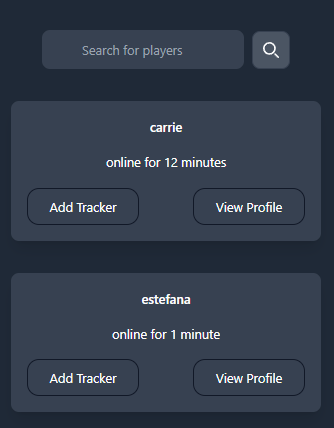
A live BattleMetrics-style player list for the connected server. Search by name. The Updated timestamp tells you how stale the list is and the Status field surfaces query timeouts. Pin a player with the tracker toggle and they show up in Tracked Players.
Each row supports player notes — your private notes about a player (e.g. "raids at night, lives in F12") that travel with you across servers.
6. Tracked players
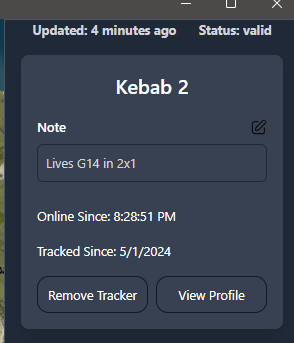
Anyone you put a tracker on shows up here with their online/offline state and last-seen time. Toggle Tracker Notifications in settings to get a Windows toast when one of them logs on or off.
7. Smart switches
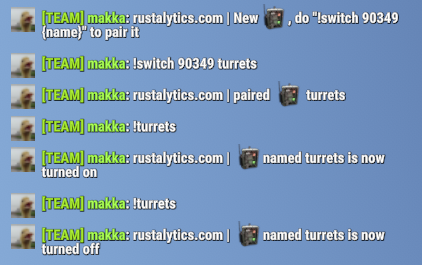
Smart switches you've paired with Rust+ appear here. Toggle them from the panel, and
rename them with !switch <id> <name> in chat. Once named, the switch gets its own command (!turrets toggles a switch named turrets).
Server topbar shortcuts
The strip across the top of the server view has three shortcuts:
- copy connect — copies a
connect ip:portstring to your clipboard. Paste into the Rust F1 console to rejoin instantly. - status — green when the bot is connected to Rust+, red when it isn't.
- watch all / remove all — bulk-add or remove vending watchers across the entire map.
Settings
Click Settings in the home topbar to tune alerts and message formatting: deaths, AFK, vending changes, oils, heli, cargo, chinook, locked-crate timer, language, the chat-command prefix, and more. Every key is documented in the Settings reference.
Auto-updates
The app checks for updates on launch and shows a banner along the top when a new version is available. Click Update now after the update finishes downloading and the app will relaunch into the new build.
Heads up: don't run this with Pro
Chat commands
Inside Rust, type !time, !cargo, !buy thompson and the bot answers in team chat. The full
list lives at Chat Commands.